Features
Several websites
Track several websites with one Zocton account — useful for agencies, products with a marketing site, or businesses with several brands. Each website has its own reports, visitors and settings, and belongs to one project: the same projects you use in every Zocton app.
Where to find it
- Your websites: the Websites list in the TraceFlow sidebar. Click the arrow beside a website to open or close its Overview, Traffic and People.
- One website's settings: its Overview → Website Management (at the foot of the page).
- Adding a website: Add Website in the sidebar, which opens the Zocton Dashboard.
- All websites together: Dashboard and Analytics in the sidebar.
Before you start
- A project to put the website in. Projects are made on the Zocton Dashboard — see Projects and team.
Add a website
- Click Add Website in the TraceFlow sidebar. Websites opens on the Zocton Dashboard.
- Click Add website. Enter the Website name and Website URL, and pick the Project.
- Choose TraceFlow under Use with.
- Copy the website's install script and add it to the website — see Install tracking snippet. Then verify it.
- The website shows in the TraceFlow sidebar. Visits appear once it is verified and the first visitor arrives.
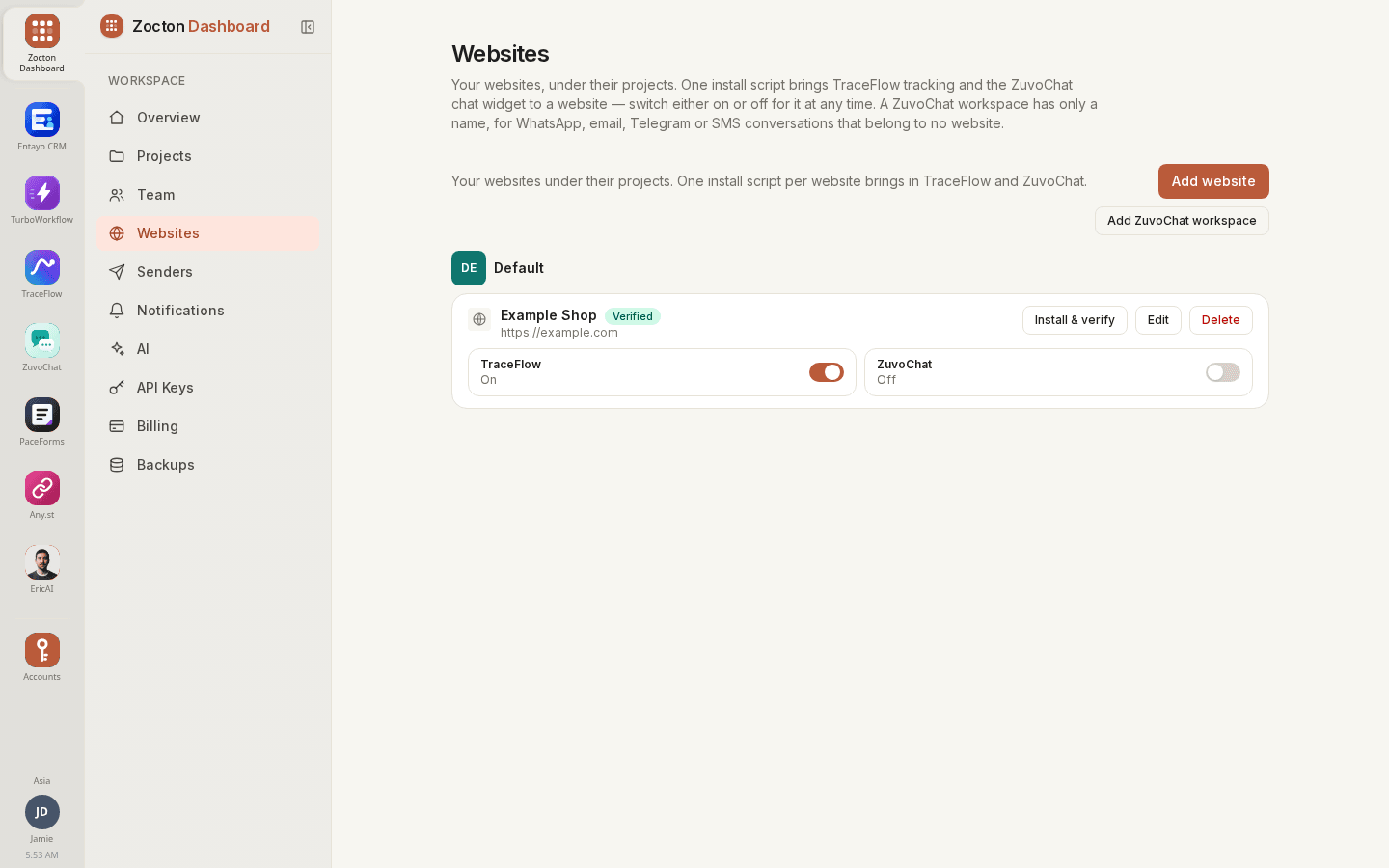
Each website has its own install script. The same script also runs ZuvoChat on that website if you switch ZuvoChat on.
Manage a website
Open the website's Overview and scroll to Website Management. It shows the website's name, its badges (Verified or Unverified, Archived, PaceForms, Sample data) and these buttons:
| Button | What it does |
|---|---|
| Move to… (project) | Moves the website to another of your projects |
| Analytics | Opens the website's Overview |
| Verify on Zocton Dashboard | Shown until the website is verified |
| Website settings (sliders icon) | Opens the settings: the install script link, Allow local testing, Ignore local runs, and the recording privacy switches when replay is on |
| Archive website | Hides the website, keeping all its data |
| Delete website | Deletes the website and all its data, after an emailed code |
Archive and restore a website
- In Website Management, click Archive website, then Archive Website.
- The website is hidden from your website list and dashboard. All its analytics and history are kept, and it shows as "(archived)" in the sidebar.
- To bring it back, open it and click Restore in Website Management.
Delete a website
- In Website Management, click Delete website.
- Read what will be erased, then click Send confirmation code to my email.
- Type the 6-digit code from the email and click Permanently Delete Website. Resend code sends a new one.
Deleting erases every visitor, session, page view, recording and campaign record of the website. It cannot be undone.
Options
| Option | Where | What it does |
|---|---|---|
| Project switcher | Sidebar | Shows All projects, or one project's websites |
| Move to… | Website Management | Changes the website's project |
| Archive website / Restore | Website Management | Hides the website, or brings it back |
| Delete website | Website Management | Deletes the website after an emailed code |
Good to know
- The Paceform website is made for every project by itself and tracks that project's PaceForms forms. It cannot be moved or deleted on its own; it goes with its project. See CRM and other Zocton apps.
- A website's name and address are changed on the Zocton Dashboard. A new domain needs verifying again.
- Deleting a project on the Zocton Dashboard deletes its websites in TraceFlow, with everything tracked on them.
- Working in a team: someone you invite on the Zocton Dashboard with TraceFlow access sees only the projects you gave them, and their websites. View access can read; Edit access is needed to change a website. See Projects and team.
Related
Last modified on