# Install tracking snippet
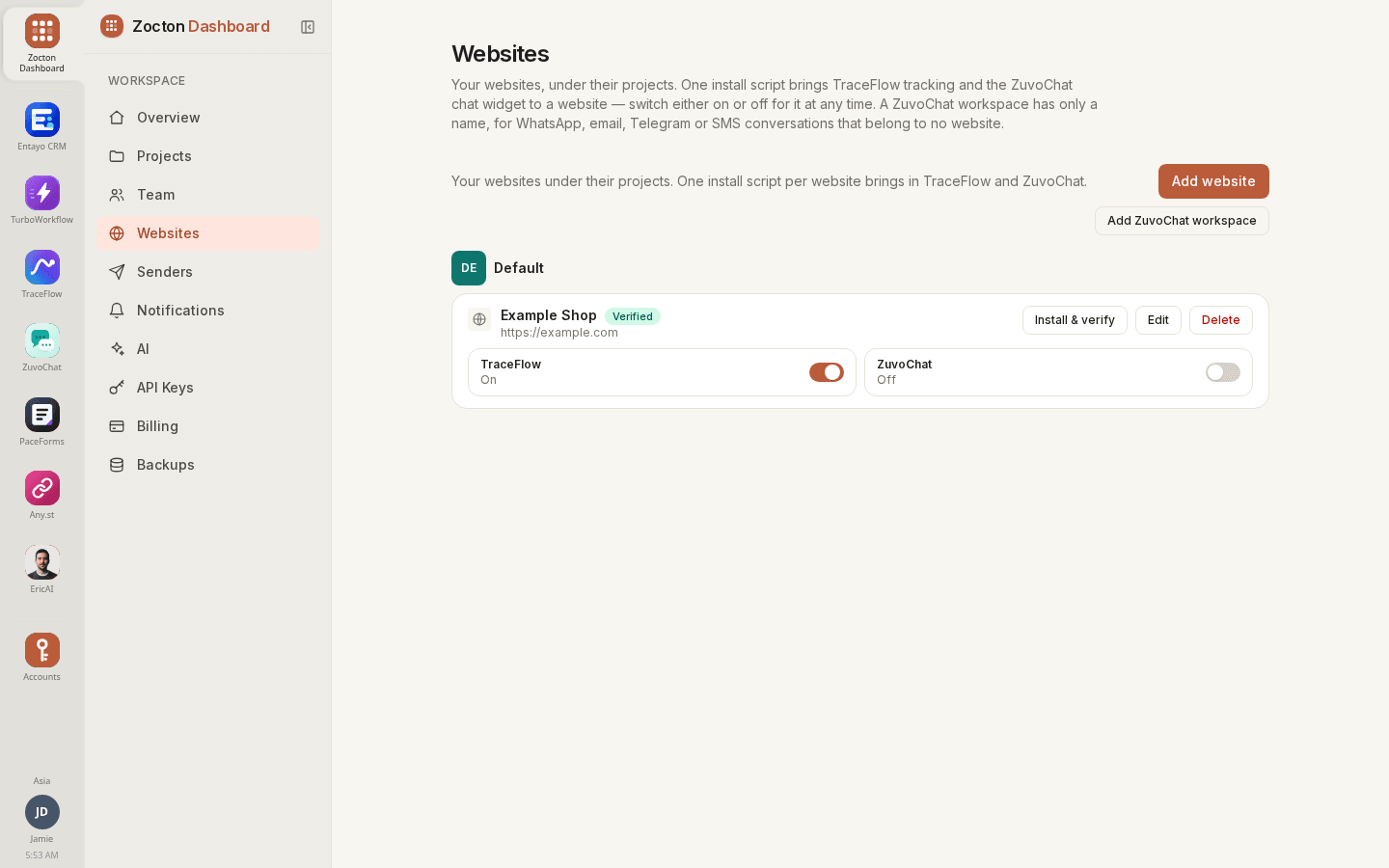
TraceFlow is installed with **one script per website**, made for you on the Zocton
Dashboard. The same script also runs ZuvoChat on that website if you switch it on,
so you never paste a second tag.
## Where to find it
**Zocton Dashboard → Websites** → your website → **Install & verify**. In TraceFlow,
the website's **Overview → Website Management → Website settings** links there with
**Manage on Zocton Dashboard**.
## Before you start
- The website is added on the Zocton Dashboard with **TraceFlow** switched on — see
[Quick setup](https://gettraceflow.com/docs/getting-started/quick-setup).
- You can change the HTML of every page, or your site builder's header settings.
## Get your install script
1. Open the **Zocton Dashboard** and go to **Websites**.
2. Find your website and click **Install & verify**.
3. Copy the **Install script**. It looks like this, with your own data centre and site id:
```html
```
4. Paste it into every page of your website (see below for your platform).
5. Verify the website (below). Once it is verified, visits start to show in TraceFlow.
Always copy the script from the Dashboard: the address and the site id are your own.
## Plain HTML
Put the script inside the `` of every page, or just before the closing
`` tag.
## WordPress
Use a plugin that adds code to the header of every page (for example *Insert
Headers and Footers*), or add the script to your theme's `header.php` after
``.
## Shopify
Go to **Online Store → Themes → Edit code → theme.liquid** and paste the script
just before ``.
## Next.js / React
Use the Next.js `Script` component in your root layout, with your own address:
```jsx
import Script from 'next/script';
```
## Astro
Add it to your base layout's `` with `is:inline`, so Astro leaves it as it is:
```html
```
## Verify the website
TraceFlow records nothing for a website until it is verified. Verify it once, on the
Zocton Dashboard, under **Install & verify** → **Verify this website**. Use either way:
1. **With the install script** — put the script on the home page (or type the address
of another page that carries it) and click **Check the website**. The page's own
HTML must carry the script: a copy added by a tag manager cannot be seen.
2. **With an emailed code** — choose one of the addresses offered, click **Send code**,
and type the **Six-digit code** from the email.
In TraceFlow, the website then shows **Verified** in **Website Management**. Until then it
shows **Unverified**, with **Verify on Zocton Dashboard**.
## Testing on your own computer
When you run your website on your own computer (`localhost`, `127.0.0.1`), the script
sends visits from there too. Two switches decide what happens to them. Find both on the
website's **Overview → Website Management**, under **Website settings** (the sliders icon).
| Switch | Default | What it does |
| --- | --- | --- |
| **Ignore local runs** | On | Visits from your own computer are not recorded and never raise an "unauthorized domain" alert. |
| **Allow local testing** | Off | Records visits from `localhost` and `127.0.0.1` like any other, so you can check your install before the website goes live. Works only on a verified website. |
To test your install locally:
1. Verify the website first.
2. Switch **Allow local testing** on.
3. Open your site on your own computer and check that the visit shows under **People**.
4. Switch **Allow local testing** off when you are done. The test visits stay in your
reports until you delete them.
## Good to know
- **The script loads in the background** (`async`), so it does not hold up your page.
- **Only your website's own domain is accepted.** The `www.` form of your address is
accepted too, but another subdomain is a separate website. Visits from any other
domain are refused, and you can be notified ("Script used on another domain") through
your Zocton Dashboard notifications.
- **Changed your address on the Dashboard?** A new domain needs verifying again.
- **Single-page apps:** the script counts each page load, back and forward navigation,
`#anchor` changes and Astro page transitions. Other in-app page changes may not count
as a new page view.
- **Consent:** where the law asks for it, load the script only after your visitors agree
— see [GDPR compliance](https://gettraceflow.com/docs/help/gdpr-compliance#load-traceflow-only-after-consent).
## Related
- [Quick setup](https://gettraceflow.com/docs/getting-started/quick-setup)
- [Websites on the Zocton Dashboard](https://www.zocton.com/docs/shared/websites)
- [Identify visitors](https://gettraceflow.com/docs/features/identify-visitors)
- [Several websites](https://gettraceflow.com/docs/features/multi-website)