# Sessions and replay
A **session** is one visit: the pages a visitor saw, in order, with where they came from
and what they used. Where session replay is on, you can also **watch the visit** — a
reconstruction of what the visitor saw and did. This page is for anyone who wants to see
exactly how people use a website.
## Where to find it
Open **TraceFlow**, click the website in the sidebar, then **People**. **Sessions** is the
section below **Visitors**. You also reach it from **Recent Sessions** → **View all
sessions** on the Overview, from any row on the **Traffic** page, and from a visitor's
**All Sessions**.
## Before you start
- The website is verified and has visits.
- For replay: session replay is on for the website (see [Turn on session replay](#turn-on-session-replay)).
## Find a session
1. Open the website's **People** page, scroll to **Sessions**, and pick a period at the top.
2. Search with **Search sessions by URL, source, country, browser...** — it looks in the
address, source, campaign, location, browser and user agent.
3. Or click a row on the **Traffic** page: Sessions opens filtered to it. Each filter shows
as a chip — **Viewed page**, **Landing page**, **Referrer**, **UTM source**,
**Campaign**, **Country**, **City**, **Device**, **Browser** or **Operating system**.
Click the chip's cross to remove it.
4. Click a session to open it.
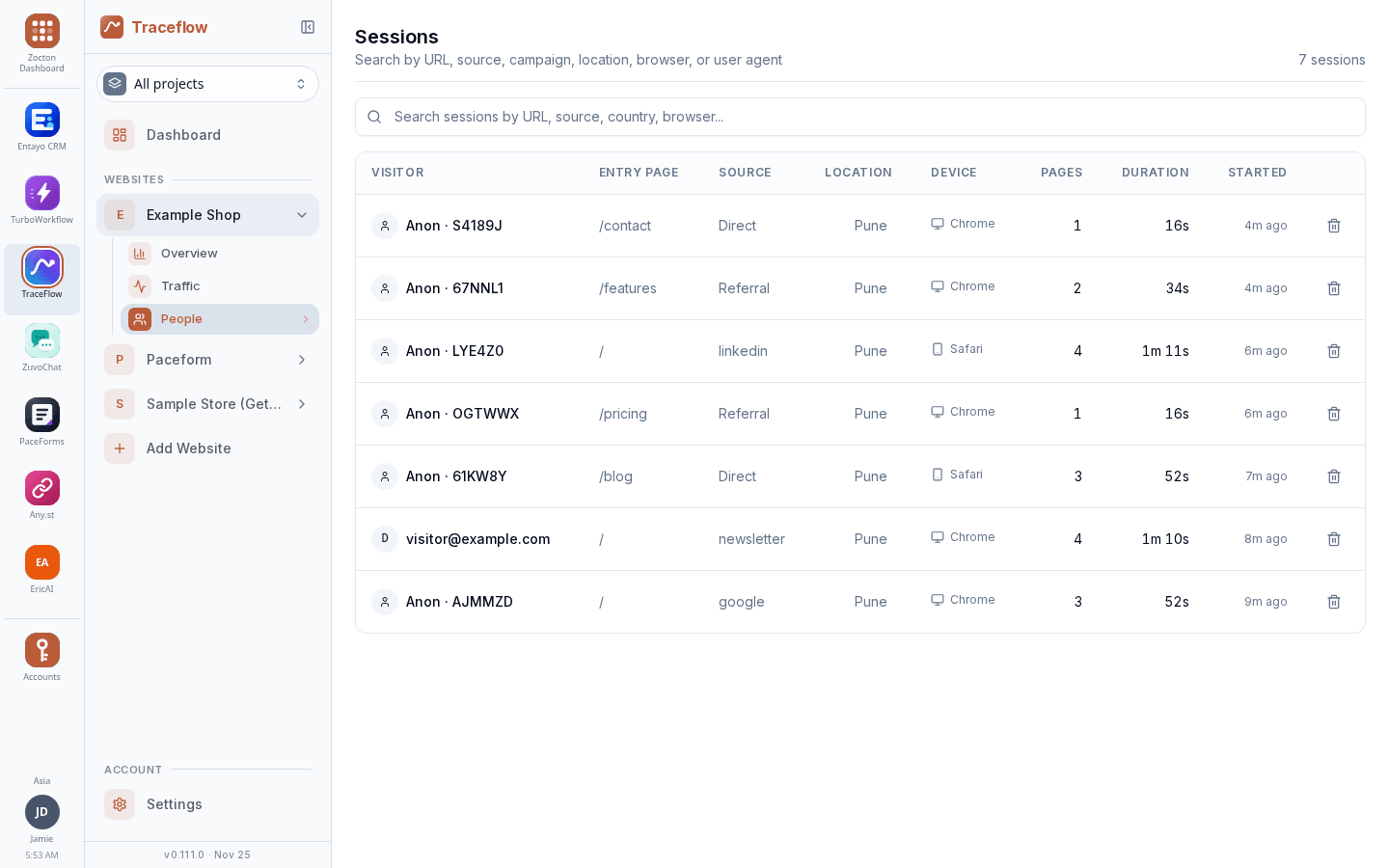
Each row shows the visitor, the **Entry Page**, **Source**, **Location**, **Device**,
**Pages**, **Duration** and when it **Started**.
## Read a session
A session's page has:
| Part | What it shows |
| --- | --- |
| Visitor | The visitor's name or email, or **Anonymous visitor** — click to open their page |
| **Session Replay** | The recording, where one was made |
| **Session Info** | **Started**, **Last Activity**, **Website**, **Entry URL**, **Referrer** |
| **Acquisition** | **Source**, **Medium**, **Campaign**, **City / State / Country**, **OS / Browser**, **User Agent** |
| **Navigation Path** | Every page of the visit, in order; the link icon opens the page |
**Back to sessions** returns to the list.
## Watch a session replay
1. Open a session that has a **Session Replay** card.
2. Click **Load replay**. The recording plays in the card at double speed.
3. Use the player to pause, seek or change the speed, or open it full screen. Press
**Esc** to leave full screen.
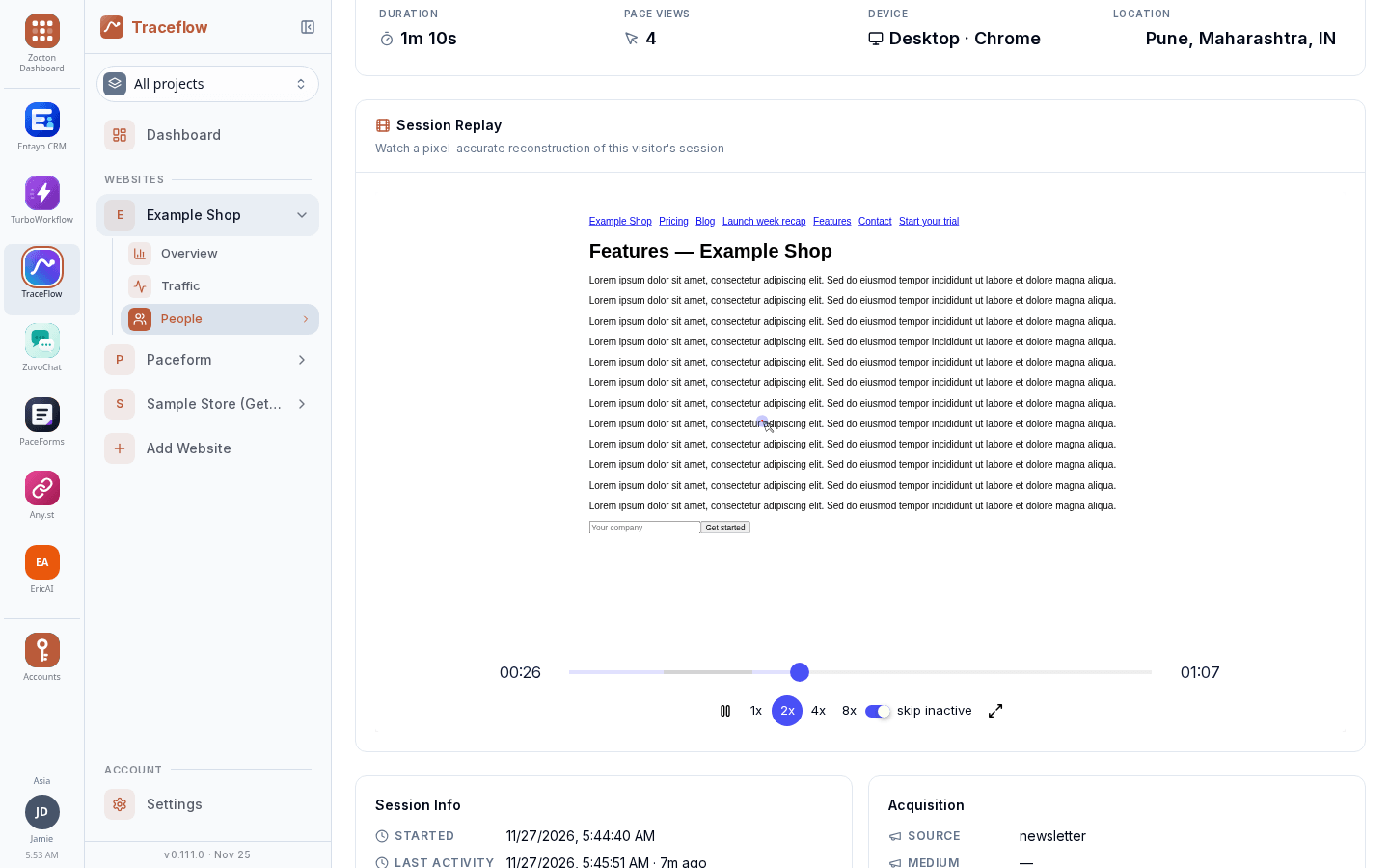
A replay is rebuilt from the page itself, not filmed: it shows the layout, scrolling,
mouse movement, clicks and page changes. If a recording could not be made, the card says
"No replay data was captured for this session."
## Turn on session replay
Session replay is switched on for a website by the Zocton team, not from a switch in
TraceFlow. To ask for it, [contact support](https://gettraceflow.com/docs/help/support). For the **Paceform** website of
each project (your PaceForms forms), recording is on from the start.
## Keep recordings private
Two switches decide what a recording may show. They appear once replay is on for the
website: open the website's **Overview → Website Management**, click **Website settings**
(the sliders icon). For the Paceform website the button is **Recording privacy settings**.
| Switch | Default | What it does |
| --- | --- | --- |
| **Mask inputs & tagged elements** | On | Hides text typed into form fields, and any element you tag with `rr-mask`, `rr-block` or `rr-ignore`. Recommended. |
| **Mask all text** | Off | Hides every piece of visible text on the page. The replay shows layout and interactions only. |
A change applies to visits recorded after it; recordings already made stay as they were.
Masking happens in the visitor's browser, so hidden text is never sent to TraceFlow.
### Hide parts of your own page
With **Mask inputs & tagged elements** on, add a class to your own HTML to hide something:
```html
Account number 12345678
…
```
## Delete a session
1. On the session's page, click **Delete Session** (or the bin icon in the Sessions list).
2. Click **Delete** to confirm. The session, its page history and its recording are
deleted for good.
## Options
| Option | Where | What it does |
| --- | --- | --- |
| Search | Top of **Sessions** | Finds sessions by address, source, campaign, location, browser or user agent |
| Filter chips | Above the search | Narrow the list to a page, source, place or device |
| **Load replay** | Session's page | Plays the recording |
| **Mask inputs & tagged elements** | **Website settings** | Hides typed text and tagged elements in recordings |
| **Mask all text** | **Website settings** | Hides all page text in recordings |
| **Delete Session** | Session's page | Deletes the session and its recording |
## Good to know
- **A session ends after an hour with no activity.** A recording counts as activity, so
a long recorded visit keeps its session open.
- **Each device has its own sessions**, even for one known person.
- **Bots are never recorded.**
- **Images from other websites** may not show inside a replay; the layout, text and
interactions still do.
- **Turning masking off** shows what visitors type in your recordings. Tell your visitors
in your privacy policy — see [GDPR compliance](https://gettraceflow.com/docs/help/gdpr-compliance).
## Related
- [Visitors](https://gettraceflow.com/docs/features/journey-timeline)
- [Website analytics](https://gettraceflow.com/docs/features/website-analytics)
- [CRM and other Zocton apps](https://gettraceflow.com/docs/features/crm-and-integrations)
- [GDPR compliance](https://gettraceflow.com/docs/help/gdpr-compliance)